Documentation
Everything you need to get started with flAim — workspaces, shared context, credits, and optional BYOK.
Introduction
flAim is a multi-agent workspace for running AI models together in one shared thread, orchestrating across them from one prompt, sharing context, and collaborating in real time. Prepaid AI credits are included so you can sign up and prompt in under a minute without an API key. On any paid plan you can optionally use BYOK (“Your key”) per panel after signup.
Free includes 250 credits/month, five included models with Auto, one workspace, eight panels, and shared context. Pro ($20/mo) includes 500 credits, five value models, optional BYOK, credit packs, and unlimited workspace limits. Power ($40/mo) includes 2,000 credits and five frontier models. Team is $30/seat (500 pooled credits per seat) and Team Plus is $50/seat (1,500 pooled credits per seat). Optional BYOK and credit packs are available on every paid plan. Real-time collaboration is included on every plan, including Free.
Unused included credits do not roll over. Purchased credit packs on paid plans persist until spent.
Quick Start
- Open flaimai.app and create an account or sign in.
- Create or open a workspace.
- Add panels and pick from the included models — no API key required to start.
- Attach shared context — briefs, code, notes — so every agent starts from the same knowledge base.
- On any paid plan, optionally add provider keys under Profile and settings → My API Keys and set a panel to “Your key.” See Bring your own API keys for details.
- In Chat, @ one agent to start. @ a different agent next — it continues with that thread. Send without a mention when you want every agent to answer. Use Build when you want one prompt to chain them.
- Invite teammates to share the workspace and live session — available on every plan. Start free or Get Pro — $20/mo
Installation
flAim is a web app at flaimai.app. Open it in a modern browser, sign in, and start a workspace — no download or install step required.
Workspace Overview
The workspace is where you run agents, share context, and collaborate. Instead of switching between browser tabs, you keep every agent visible in one place — with a shared compose bar and unified thread.
- Add agents for the models you need. They share one thread: talk to one, then another, or several at once.
- Each panel runs an included model, or an optional BYOK provider on a paid plan.
- Shared context blocks and Notes sit alongside agents so every model reads from the same material.
Agents
Agents are the chat surfaces for individual models in your workspace. Add a panel and pick an included model, or — on a paid plan — connect a provider key and set the panel to “Your key.”
- Add multiple agents. @ one to start, @ another to continue the same thread, or send once so they all answer the next question — without re-explaining the task.
- Keep different models visible for different steps — drafting, review, research, code.
- Free accounts can run up to eight panels in one workspace; Pro and Power remove panel limits across unlimited workspaces.
Free includes Nemotron 3.5 Lightning, Laguna S 2.1, Gemma 4 31B, Qwen3.8 27B, and Nemotron 3 Ultra. Long-tail providers remain available via optional BYOK on paid plans — including Copilot, OpenRouter, Perplexity, Figma, Together, Groq, Fireworks, and MiniMax.
Workspace Management
Free
- 250 AI credits / month (no rollover)
- Five included models with flAim Auto
- 1 workspace
- 8 panels
- Shared context between agents
- Real-time collaboration in that workspace
- No BYOK or credit packs
Pro — $20/month
- 500 AI credits / month
- Five current value models
- Optional BYOK and credit packs
- Unlimited workspaces, panels, and API keys
Power — $40/month
- 2,000 AI credits / month
- Five frontier models
- Optional BYOK and credit packs
- Unlimited workspaces and panels
Team — $30/seat/month
- 500 pooled credits / seat / month
- Shared wallet, team canvases, and privacy-preserving ZDR routing
- Five value-class models
- Optional BYOK per panel
- Credit packs that persist until spent
Team Plus — $50/seat/month
- 1,500 pooled credits / seat / month
- Distinct frontier-class models
- Shared wallet, team canvases, and privacy-preserving ZDR routing
- Optional BYOK per panel
- Credit packs that persist until spent
Upgrade when you need more credits, models, or teammates in the same live AI session. Get Pro — $20/mo
Bring your own API keys
BYOK is optional after signup and available on every paid plan. Managed chats use prepaid flAim credits; panels set to “Your key” bill your own provider account and do not spend flAim credits. Free is the only plan that cannot use BYOK.
Treat API keys like passwords. Anyone with a key can use your provider account and spend your quota. Only share keys with teammates you trust.
How to add keys in flAim
- Open flaimai.app and sign in.
- Go to Profile and settings → My API Keys.
- Choose the provider, paste the key from that provider's console, and save.
- Repeat for each provider you plan to use with agents.
- Add a panel, pick a model from a provider you configured, and send a short test prompt.
Troubleshooting
If a model fails to respond, confirm the key is still active in the provider's console, billing is set up on the provider side, and you pasted the full key with no extra spaces. Provider-specific setup steps are below.
Provider setup guides
Each provider below has its own developer console and billing. Follow the guide for every provider you want to run in flAim — you need a separate key from each one.
OpenAI
Use GPT and other OpenAI models in flAim agents.
Get your API key: platform.openai.com/api-keys
- Open https://platform.openai.com/api-keys and sign in with the account that should own usage and billing.
- Click Create new secret key, give it a name you will recognize (for example flAim workspace), and confirm.
- Copy the key immediately — OpenAI shows the full secret only once. Store it somewhere safe.
- In flAim, open Profile and settings → My API Keys, choose OpenAI, paste the key, and save.
- Add an agent, select an OpenAI model, and send a short test prompt to confirm the connection.
Anthropic (Claude)
Connect Claude models through your Anthropic developer account.
Get your API key: console.anthropic.com/settings/keys
- Open https://console.anthropic.com/settings/keys and sign in to the Anthropic Console.
- If prompted, add billing under Plans & Billing — Anthropic requires an active billing setup before API requests succeed.
- Click Create Key, name it (for example flAim), and copy the key right away.
- In flAim, open Profile and settings → My API Keys, choose Anthropic, paste the key, and save.
- Add an agent, pick a Claude model, and send a test prompt.
Gemini
Run Google Gemini models with an API key from Google AI Studio.
Get your API key: aistudio.google.com/apikey
- Open https://aistudio.google.com/apikey and sign in with the Google account that should manage the project.
- Click Create API key and choose or create a Google Cloud project when prompted.
- Copy the generated key. If your usage requires it, enable billing for that project in Google Cloud Console.
- In flAim, open Profile and settings → My API Keys, choose Gemini, paste the key, and save.
- Add an agent, select a Gemini model, and send a test prompt.
Copilot
Connect Microsoft Copilot models through Azure AI / Azure OpenAI.
Get your API key: Azure portal — Azure OpenAI
- Sign in to https://portal.azure.com with the Microsoft account that owns your Azure subscription.
- Create or open an Azure OpenAI (or Azure AI Foundry) resource for the models you plan to use.
- In that resource, open Keys and Endpoint and copy both the endpoint URL and one of the API keys.
- In flAim, open Profile and settings → My API Keys, choose Copilot, paste the endpoint and key, and save.
- Add an agent, select a Copilot model available on your Azure resource, and send a test prompt.
Azure OpenAI access may require an approved application before you can create a resource. Use the endpoint and key from the exact resource you deploy.
OpenRouter
OpenRouter routes requests to many models through one API key.
Get your API key: openrouter.ai/keys
- Open https://openrouter.ai/keys and sign in (or create an account first at https://openrouter.ai).
- Click Create Key, name it, and copy the key.
- Add credits or billing at https://openrouter.ai/credits if OpenRouter prompts you before requests will run.
- In flAim, open Profile and settings → My API Keys, choose OpenRouter, paste the key, and save.
- Add an agent, pick any model routed through OpenRouter, and send a test prompt.
Perplexity (Sonar)
Use Perplexity Sonar and related APIs from your Perplexity account.
Get your API key: perplexity.ai/account/api/keys
- Open https://www.perplexity.ai/account/api/keys and sign in to your Perplexity account.
- If you have not used the API before, create an API group when prompted.
- Click Generate or Create API key, copy the key immediately — it is shown only once.
- In flAim, open Profile and settings → My API Keys, choose Perplexity, paste the key, and save.
- Add an agent, select a Perplexity model, and send a test prompt.
Figma
Figma integrations use a personal access token from your Figma account.
Get your API key: figma.com/developers/api
- Sign in to Figma at https://www.figma.com with the account that should own the integration.
- Open Settings → Security → Personal access tokens (or follow the Access tokens section at https://www.figma.com/developers/api#access-tokens).
- Click Generate new token, name it, select only the scopes your flAim workflow needs, and create the token.
- Copy the token immediately — Figma shows it only once.
- In flAim, open Profile and settings → My API Keys, choose Figma, paste the token, and save.
Figma tokens grant access to your Figma account and files. Create tokens only with the permissions you need, and revoke tokens you no longer use.
Together AI
Run open-source and hosted models through Together AI.
Get your API key: api.together.ai/settings/api-keys
- Open https://api.together.ai/settings/api-keys and sign in to the Together AI dashboard.
- Click Create API key, name it, and copy the key.
- Add billing or credits at https://api.together.ai/settings/billing if Together prompts you before requests will run.
- In flAim, open Profile and settings → My API Keys, choose Together AI, paste the key, and save.
- Add an agent, select a Together model, and send a test prompt.
Groq
Use Groq-hosted models with low-latency inference.
Get your API key: console.groq.com/keys
- Open https://console.groq.com/keys and sign in (create an account at https://console.groq.com if needed).
- Click Create API Key, name it, and copy the key.
- In flAim, open Profile and settings → My API Keys, choose Groq, paste the key, and save.
- Add an agent, pick a Groq model, and send a test prompt.
Fireworks AI
Access Fireworks-hosted models through your Fireworks account.
Get your API key: app.fireworks.ai/account/api-keys
- Open https://app.fireworks.ai/account/api-keys and sign in to Fireworks AI.
- Click Create API key, name it, and copy the key.
- Set up billing at https://app.fireworks.ai/account/billing if Fireworks prompts you before requests will run.
- In flAim, open Profile and settings → My API Keys, choose Fireworks AI, paste the key, and save.
- Add an agent, select a Fireworks model, and send a test prompt.
MiniMax
Connect MiniMax language and multimodal models from the MiniMax API platform.
Get your API key: platform.minimax.io — API Keys
- Open https://platform.minimax.io/user-center/basic-information/interface-key and sign in (register at https://platform.minimax.io if needed).
- Create a new secret key for pay-as-you-go usage, or copy your subscription key from Billing if you are on a token plan.
- Copy the key immediately and store it securely.
- In flAim, open Profile and settings → My API Keys, choose MiniMax, paste the key, and save.
- Add an agent, select a MiniMax model, and send a test prompt.
MiniMax offers pay-as-you-go API keys and separate subscription keys for token plans. Use the key type that matches your account.
Preferences
Workspace and account settings let you tune how flAim looks and behaves.
- Theme — switch between light and dark mode to match your environment.
- API keys — add, update, or remove provider keys from Profile and settings → My API Keys.
- Workspace layout — arrange agents in the workspace for the workflow you use most often.
Team Workspaces
Collaboration is available on every plan, including Free. Open Share on a workspace to invite collaborators by email. Everyone works from the same agents, shared context, and model setup. Managed chats spend the workspace owner’s credit balance.
- Share one environment instead of copying prompts and outputs between tools.
- Use managed credits together, or optional BYOK with shared owner keys when configured.
- See prompts and responses as they happen in the same live session.
Get Pro — $20/mo to unlock unlimited shared workspaces.
Sharing & Permissions
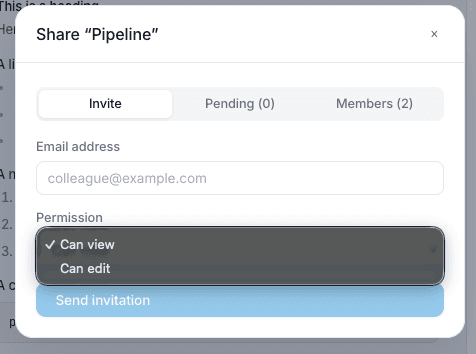
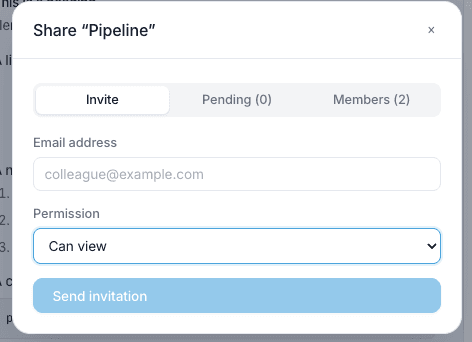
Use Share on a workspace to invite people by email. The share dialog has three tabs:
- Invite — send a new invitation
- Pending — invitations waiting to be accepted
- Members — people who already have access
Invite by email
- Open Share on the workspace you want to collaborate in.
- Enter the collaborator's email address.
- Choose a permission: Can view (read-only access) or Can edit (can work in the workspace).
- Click Send invitation.
Treat shared API keys like shared credentials — only invite people you trust, and rotate keys at the provider if someone should no longer have access.
Public Sharing
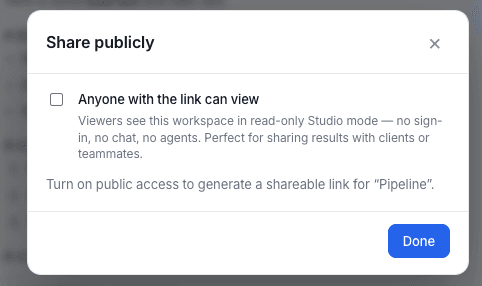
Use Share publicly to generate a read-only link anyone can open without signing in to flAim.
Public link
- Open Share publicly on the workspace.
- Turn on Anyone with the link can view.
- Copy the public link or open the preview to confirm what viewers will see.
Viewers see the workspace in read-only Studio mode — no sign-in, no chat, no agents. This is useful for sharing results with clients or teammates who only need to view the output.
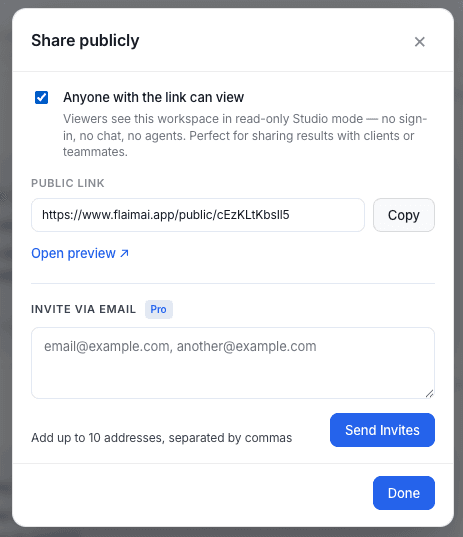
Invite via email (Pro)
From the same Share publicly dialog, Pro users can also send email invites — up to 10 addresses at a time, separated by commas. Click Send Invites after entering the addresses.
Real-time Sync
flAim keeps collaborators aligned in the same live AI session. When someone sends a prompt or receives a response, others in the workspace can follow along without refreshing or copying results into another tool.
Real-time sync applies to shared workspaces on every plan, including Free. Pro and Power remove the one-workspace limit so you can run more shared sessions at once.
Still need help?
Check the FAQ or send us a message on the contact page.